
Aesthetically pleasing themes🎨 for developers
With a unique blend of colors and attention to detail, our themes provide an exceptional feel that is both enjoyable and productive.

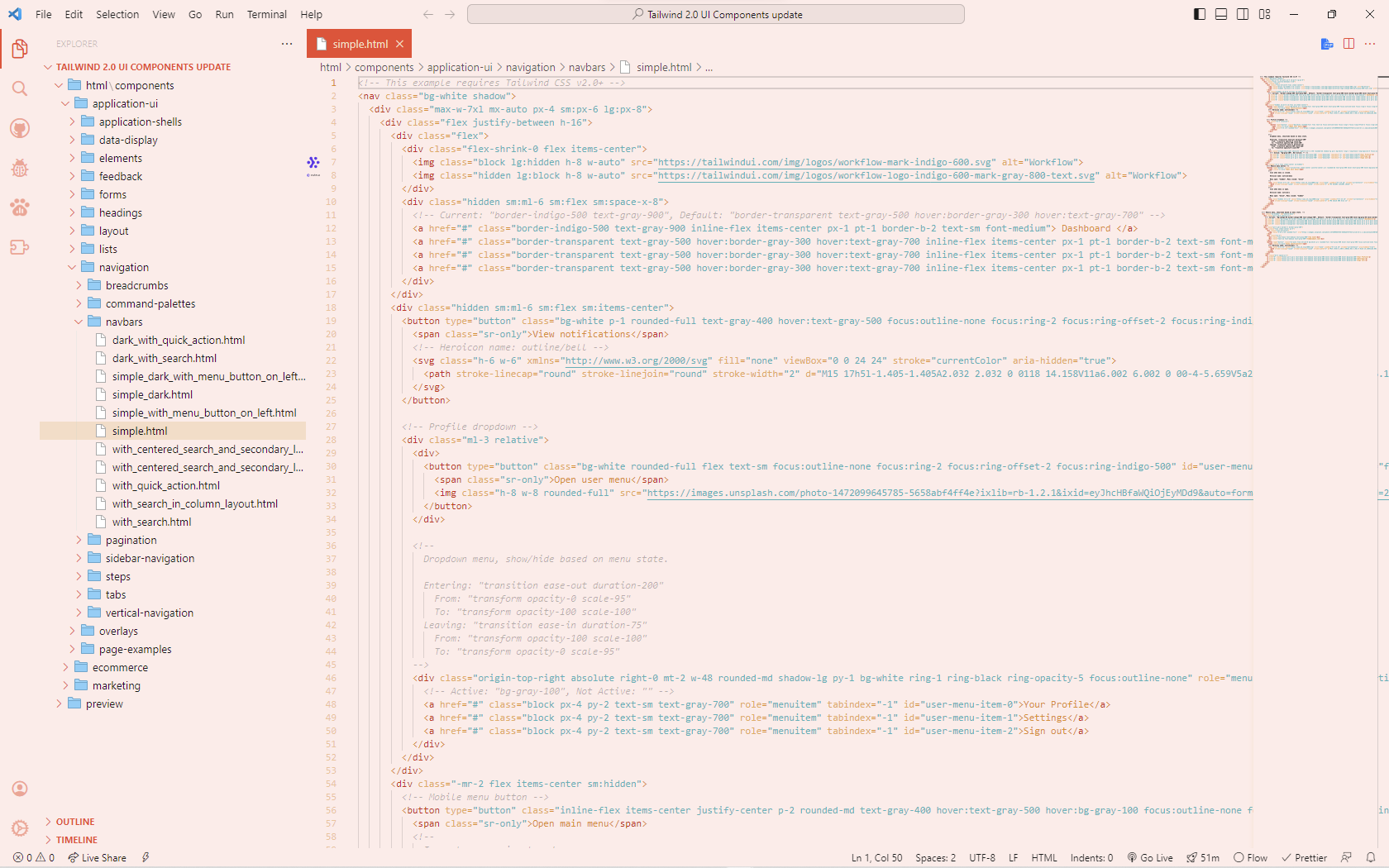
🚀 Installation
With simple installation steps, you revolutionize your coding experience today.

To begin installing, open the VS Code then navigate to Extensions sidebar panel and it will show a search bar "Search Extensions in Marketplace"

In the search bar, search for the Makinda Light or Dark Theme by Jackson Makinda. This theme comes in two variants - light and dark - so choose the one that best suits your preferences.

Once you've located the Makinda Theme, click the "Install" button to begin the installation process. This will download and install the theme on your VS code system.

Finally, to apply the Makinda Theme, navigate to "Manage" in the bottom menu, then select "Themes". From here, select "Makinda Light" or "Makinda Dark" as your preferred color theme, depending on which variant you installed.
Text Primary
#E35836
Text Secondary
#F0A694
Yellow-ish
#F4DFC4
Light Blue-ish
#A9D9FF
Blue-ish
#86C5CB
Heading 1
Gilroy, 40pt
Heading 2
Gilroy, 32pt
Heading 3
Gilroy, 28pt
Heading 4
Gilroy, 24pt
Paragraph Large
Samsung Sans, 20pt
Paragraph Small
Samsung Sans, 16pt